Recording guide
Follow these instructions to capture a process with Pantera and make sure the recording has the quality it needs.
3–10 minutes per segment · Entire screen · Microphone on, system audio off
Before you record
01
Go to app.panteragpt.com/signup and create an account.
Then sign in and, under the Record Process option, click Start recording.
Open app.panteragpt.com/signup →
02
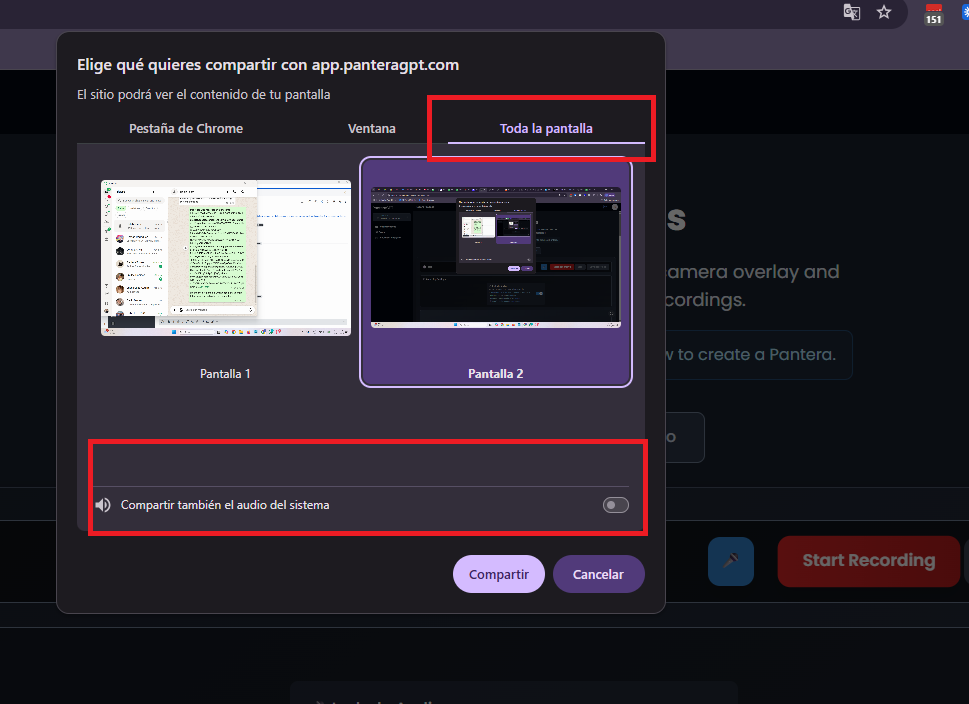
When the browser asks what to share, select the entire screen.
Very important: turn off the option to share system audio. If it is on, it blocks the main microphone and the recording will have no audio.
03
Explain every step, decision and rule.
Narrate your thought process throughout the entire recording.
04
Recommended duration: 3–10 minutes per process segment.
05
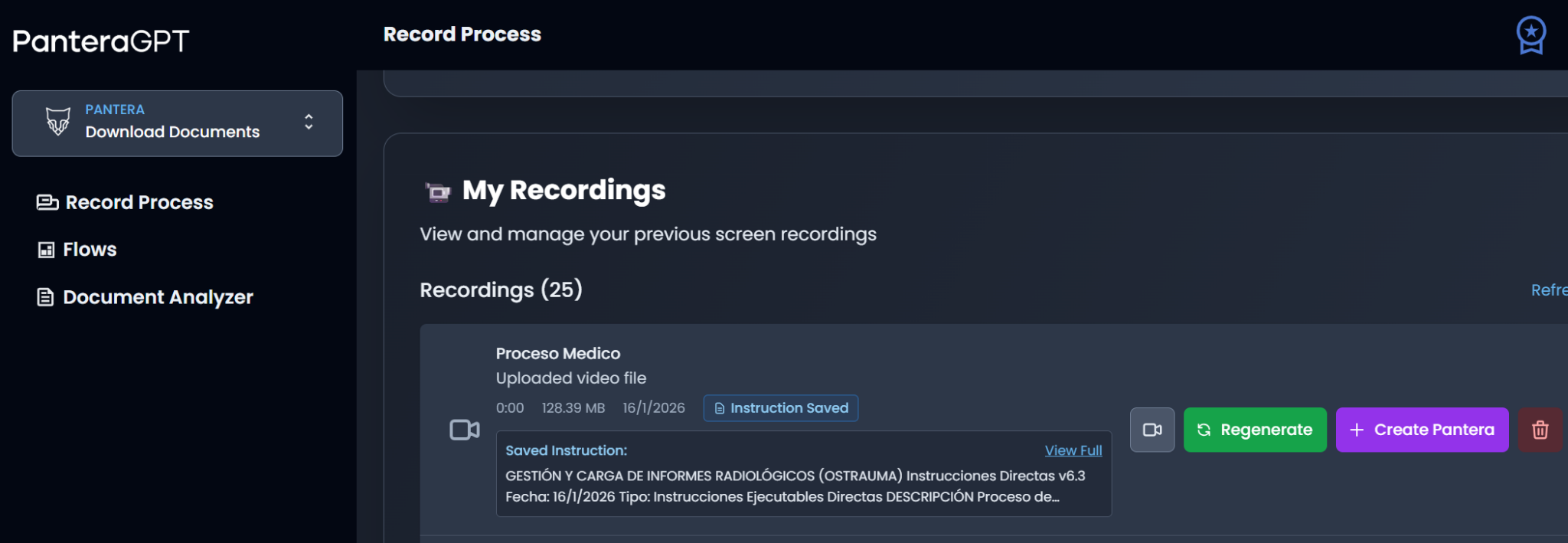
Click the camera icon to make sure the recording came out correctly and the audio can be heard clearly.
You can also check what Pantera understood by clicking Generate analysis (the green button).
What to cover
Follow this order in each recording, from the introduction to the final output.
01
30 seconds – 1 minute
What: briefly describe what will be accomplished.
Why: explain why this process matters to the business.
When: describe what triggers the process or when it runs.
02
Data sources: where do you receive information from? (Systems, emails, files.)
Initial setup: what applications or files do you open first?
Prerequisites: is any preparation or condition required?
03
Each action: show and narrate every click, input and calculation.
Navigation: show how you move between screens and applications.
Data handling: show filtering, sorting and applying formulas.
File operations: show saving, copying and moving files.
04
Decision logic: “If the amount exceeds $10,000, I flag it for review…”
Validation rules: “I always cross-check this information with…”
Approvals: “When this condition occurs, I escalate it to…”
Quality checks: “I verify accuracy by…”
05
Common issues: “Sometimes this field is blank, so I…”
Error scenarios: “When the system shows this error, I…”
Data issues: “If the numbers do not match, I…”
System failures: “When the application is not working, I…”
06
Deliverables: what files, reports or updates are created?
Distribution: where do the outputs go, and who receives them?
Documentation: what records are kept?
Follow-up: is any later action required?
Before you send it
The audio is clear and easy to understand
The screen content is readable
Every step is shown completely
The business rules are explained
Exceptions are covered
Several examples are included (if applicable)
Send it along
Supporting files: attach sample files used in the process.
Written notes: include any rules or details not mentioned in the video.
Contact: name someone we can reach with clarification questions.
Create your account and record your first process today.

Trabalhadores digitais de IA que executam operações financeiras nos sistemas que você já usa.
Apoiado por



Produto
Escritórios
Fort Lauderdale, Estados Unidos
Cidade do México, México
Bogotá e Medellín, Colômbia